Audit Follow-Up
Overview
The Audit Follow-Up page tracks all questions that were answered No during audit execution. These represent internal control gaps or non-compliant items that need to be resolved by the responsible parties. Each unresolved item must be reviewed, a resolution action taken, and the item marked as Satisfied or Not Satisfied with supporting attachments.
Navigate to: Audit > Audit Follow-Up
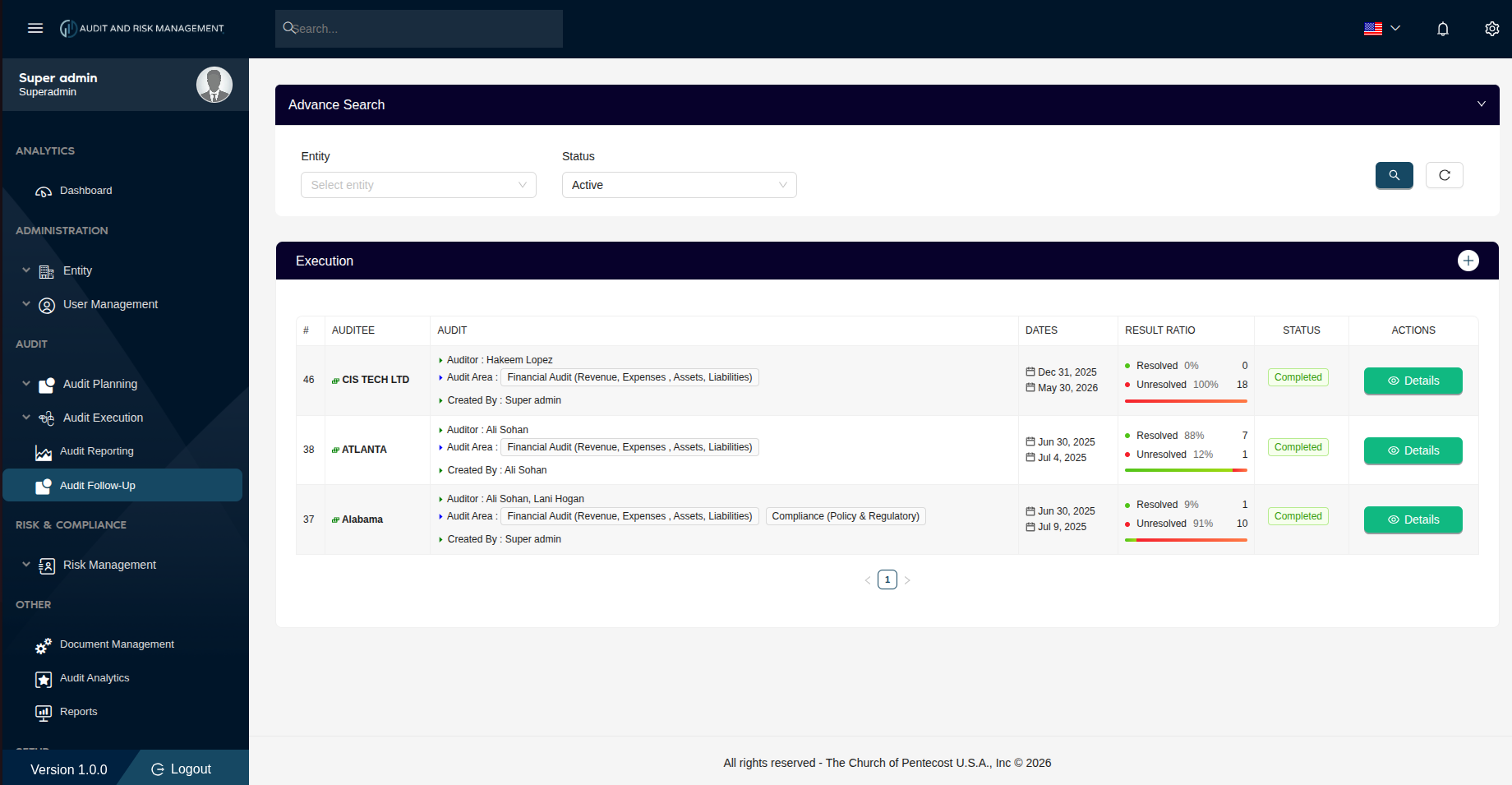
Advanced Search
| Filter Field | Type | Description |
|---|---|---|
| Entity | Dropdown | Filter by the company/entity being audited |
| Status | Dropdown | Filter by status. Default is Active |
!!! tip "Search & Reset" - Click the 🔍 Search button (teal) to apply the filters - Click the ↺ Reset button to clear all filters and reload the full list
Execution Table
| Column | Description |
|---|---|
| # | Notification ID |
| Auditee | The company/entity that was audited |
| Audit | Assigned auditor(s), audit area(s), and the user who created the notification |
| Dates | The audit start and end dates |
| Result Ratio | Breakdown of Resolved % (green) vs Unresolved % (red) from the No-answered questions |
| Status | Always Completed for records in this list |
| Actions | Details — opens the follow-up detail page for resolution |
Result Ratio — Follow-Up View
Unlike Audit Reporting (which shows Yes/No), the Follow-Up result ratio tracks resolution progress of the No answers:
| Indicator | Color | Description |
|---|---|---|
| Resolved | 🟢 Green | Percentage and count of No-answers that have been resolved |
| Unresolved | 🔴 Red | Percentage and count of No-answers still pending resolution |
A progress bar shows the resolved/unresolved split at a glance.
!!! info "Example"
An audit with 18 No answers where 0 are resolved shows: Resolved 0% (0) / Unresolved 100% (18)
After resolving 7 items: Resolved 88% (7) / Unresolved 12% (1)
Follow-Up Detail Page
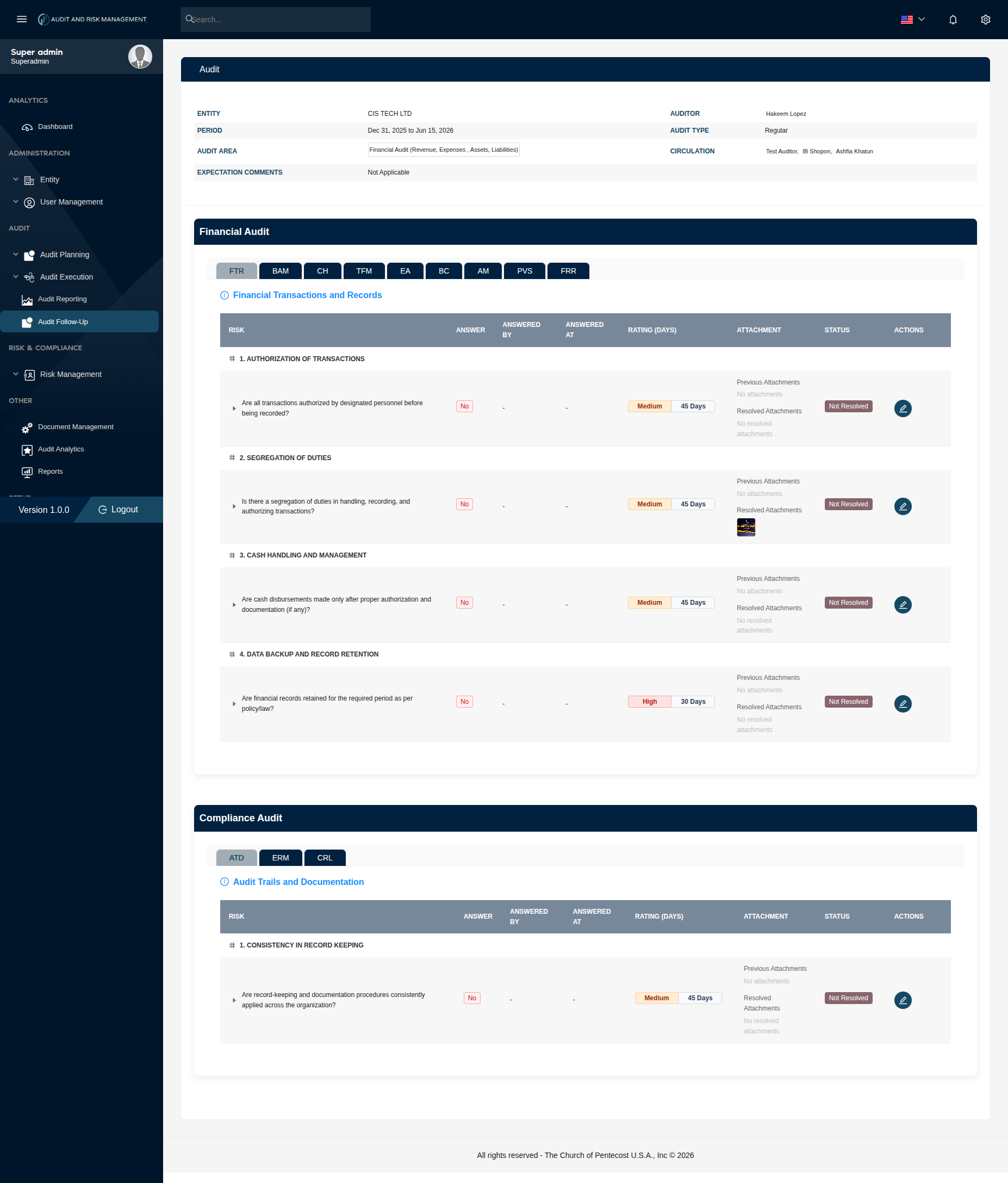
Clicking Details opens the full audit questionnaire filtered to show only the No-answered questions across all tabs.
Audit Summary Panel
The top section shows the same read-only audit details: Entity, Auditor, Period, Audit Type, Audit Area, Circulation, and Expectation Comments.
Follow-Up Question Table
Questions are organized by audit section (Financial Audit and Compliance Audit) with their respective tabs.
| Column | Description |
|---|---|
| Risk | The question text nested under its risk group (e.g. 1. Authorization of Transactions) |
| Answer | Always No (red badge) — only No-answered questions appear here |
| Answered By | The auditor who submitted the No answer |
| Answered At | Date and time the answer was submitted |
| Rating (Days) | The risk rating (High, Medium, Low) and the number of days allowed for resolution |
| Attachment | Shows Previous Attachments (from execution) and Resolved Attachments (added during follow-up) |
| Status | Not Resolved (red) or Resolved once follow-up is submitted |
| Actions | ✏️ Edit icon — opens the Question Details modal to submit a resolution |
!!! info "Rating (Days)" - High, Medium, and Low rated risks need to be resolved within 30, 45, 60 days respectively.
Compliance Audit Tabs
For audits that include Compliance (Policy & Regulatory), additional tabs appear under a separate Compliance Audit section:
| Tab | Full Name |
|---|---|
| ATD | Audit Trails and Documentation |
| ERM | Emergency and Risk Management |
| CRL | Compliance with Laws and Regulations |
Question Details Modal — Resolution
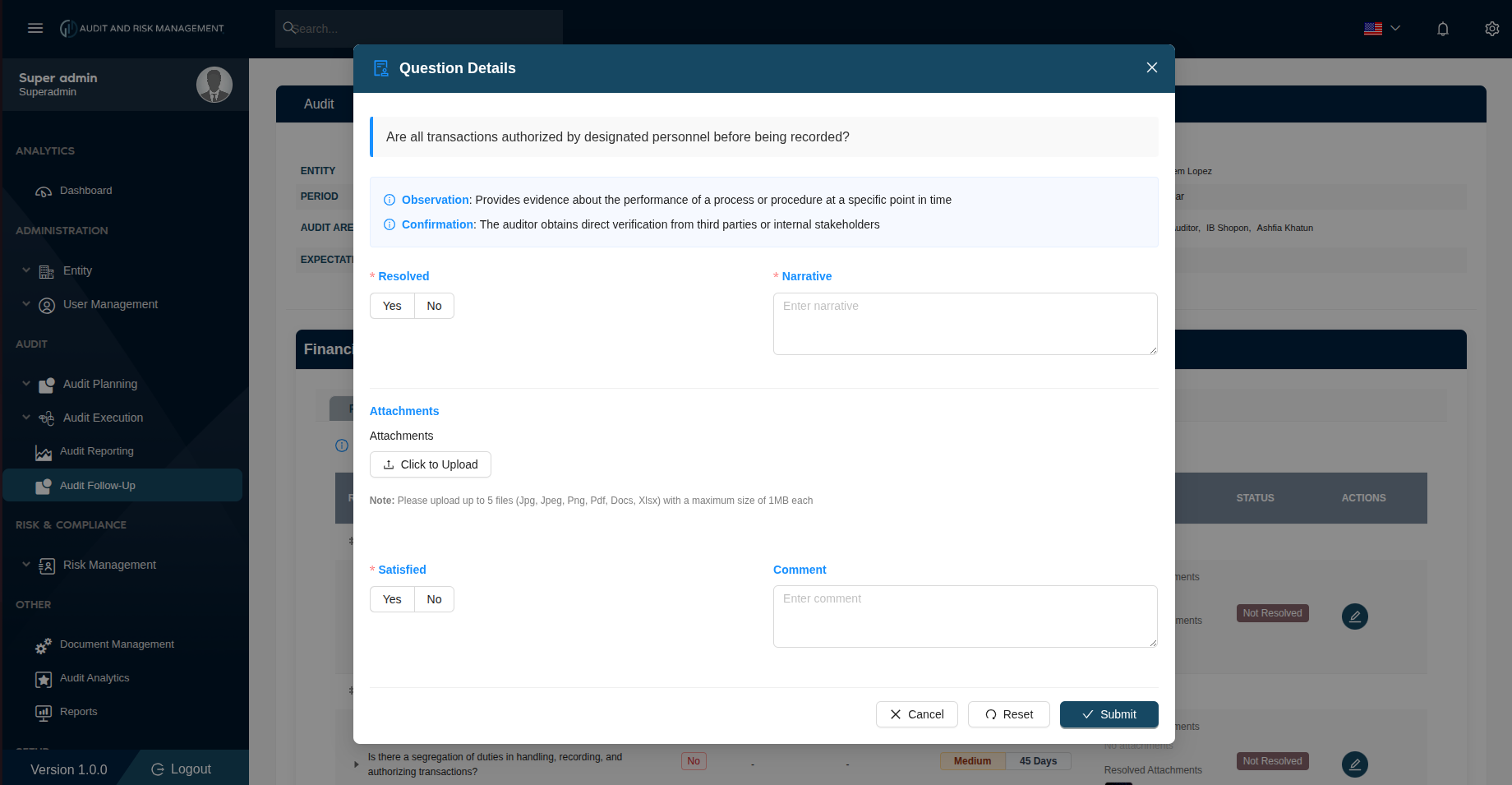
Clicking the ✏️ icon on any unresolved question opens the Question Details modal for follow-up resolution.
Modal Fields
| Field | Type | Required | Description |
|---|---|---|---|
| Question | Display | — | The full question text at the top of the modal |
| Observation | Info | — | Provides evidence about the performance of a process or procedure at a specific point in time |
| Confirmation | Info | — | The auditor obtains direct verification from third parties or internal stakeholders |
| Resolved | Toggle | ✅ | Select Yes (resolved) or No (still unresolved) |
| Narrative | Text | ✅ | Describe the resolution action taken or explain why it remains unresolved |
| Attachments | File | ❌ | Upload supporting evidence (up to 5 files: JPG, JPEG, PNG, PDF, DOCS, XLSX, max 1MB each) |
| Satisfied | Toggle | ✅ | Select Yes if the resolution is satisfactory, or No if further action is needed |
| Comment | Text | ❌ | Any additional comments on the resolution or satisfaction status |
!!! info "Resolved vs Satisfied" - Resolved — Indicates whether the specific control gap has been addressed - Satisfied — Indicates whether the reviewer is satisfied with the resolution provided
Both fields are required. An item is fully closed only when **Resolved = Yes** and **Satisfied = Yes**.
!!! warning "Attachment Limits" - Accepted formats: JPG, JPEG, PNG, PDF, DOCS, XLSX - Maximum 5 files per question - Maximum 1MB per file
Modal Buttons
| Button | Action |
|---|---|
| Cancel | Closes the modal without saving |
| Reset | Clears all filled fields in the modal |
| Submit | Saves the resolution and updates the question status |
Step-by-Step: How to Resolve Follow-Up Items
- Go to Audit → Audit Follow-Up
- Review the Result Ratio to see how many items are Unresolved for each audit
- Click Details to open the follow-up detail page
- For each Not Resolved question:
- Click the ✏️ icon to open the Question Details modal
- Set Resolved to
YesorNo - Enter a Narrative describing the resolution or action taken
- Upload any Attachments as supporting evidence
- Set Satisfied to
Yesif the resolution is acceptable - Add a Comment if needed
- Click Submit
- Repeat for all unresolved items
- Track progress in the Result Ratio column as Resolved % increases
!!! success "Expected Result" Each submitted resolution updates the question status from Not Resolved to Resolved. The Result Ratio in the Follow-Up list updates to reflect the new resolution percentage.
!!! warning "Items answered No for 'Resolved'" If Resolved is answered and Satisfied field is not filled, the item is answered but remains in Not Resolved status and will continue to appear in the follow-up list for further action. To resolve the item, need to fill satisfied field with comment.