Review Notification
Overview
The Notification Detail page is opened by the auditor after receiving an audit invitation. It displays the audit's key information and presents the Internal Controls Assessment Questionnaire for the auditor to fill in responses before submitting.
Navigate to: Audit > Audit Planning > Audit Notification > Notification List > [Select Notification to Review]
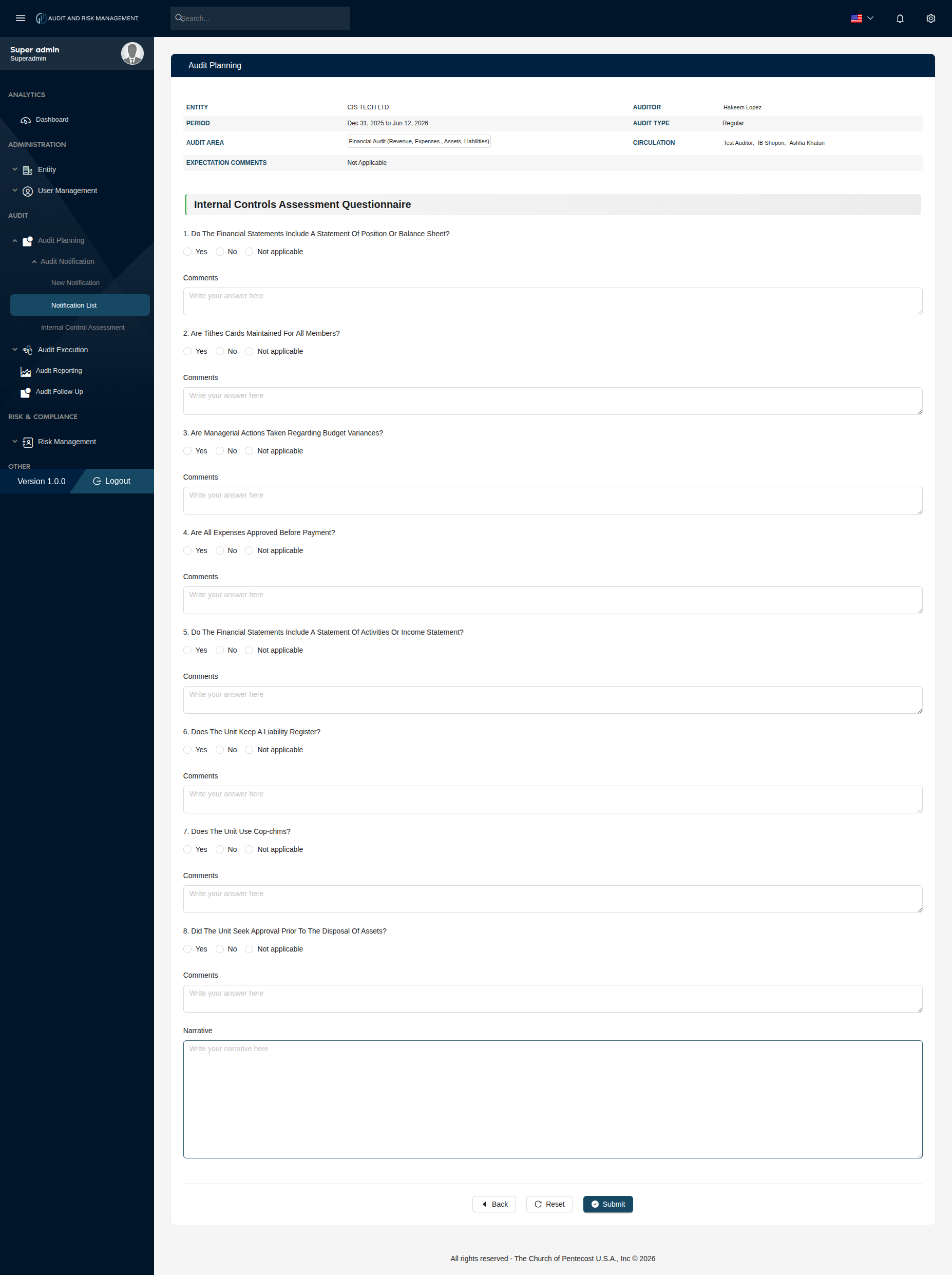
Audit Summary Panel
At the top of the page, the audit details set during the notification are displayed as read-only fields:
| Field | Description |
|---|---|
| Entity | The company/entity being audited (e.g. CIS TECH LTD) |
| Auditor | The assigned auditor's name (e.g. Hakeem Lopez) |
| Period | The audit period — Start Date to End Date (e.g. Dec 31, 2025 to Jun 12, 2026) |
| Audit Type | The type of audit: Clearance, Regular, or Other (e.g. Regular) |
| Audit Area | The area(s) being audited (e.g. Financial Audit (Revenue, Expenses, Assets, Liabilities)) |
| Circulation | The list of users in circulation for this audit (e.g. Test Auditor, IB Shopon, Ashfia Khatun) |
| Expectation Comments | Any comments set by the admin (e.g. Not Applicable) |
!!! info "Read-Only Fields" These fields are set by the admin during the Send New Notification step and cannot be edited here.
Internal Controls Assessment Questionnaire
Each question selected during the notification setup is displayed here for the auditor to respond to.
Per-Question Response Format
For each question, the auditor must:
| Field | Type | Required | Description |
|---|---|---|---|
| Answer | Radio | ✅ | Select one: Yes, No, or Not applicable |
| Comments | Text | ❌ | Write additional context or observations for this question |
!!! info "Questions vary per notification" The questions displayed depend on what was selected by the admin when creating the notification. Different notifications may have different sets of questions.
Narrative
At the bottom of the questionnaire, there is a Narrative field where the auditor can write a general summary or overall observation about the audit findings.
| Field | Type | Required | Description |
|---|---|---|---|
| Narrative | Text | ❌ | A free-text field for overall audit narrative or summary |
Step-by-Step: How to Complete and Submit a Notification
- Go to Audit → Audit Planning → Audit Notification → Notification List
- Click on the relevant notification's Review to open the Notification Detail page
- Review the audit summary at the top (Entity, Auditor, Period, Audit Type, etc.)
- For each question in the Internal Controls Assessment Questionnaire:
- Select Yes, No, or Not applicable
- Optionally write a Comment for that question
- At the bottom, optionally write a Narrative summarizing overall observations
- Click Submit to finalize and submit the assessment
!!! success "Expected Result" The completed questionnaire is recorded against the audit notification. The notification status updates to reflect the submission.
!!! warning "All questions should be answered" Ensure every question has a selected response (Yes, No, or Not applicable) before submitting to avoid incomplete assessment records.
!!! tip "Buttons" - Back — Returns to the Notification List without saving - Reset — Clears all responses and comments - Submit — Finalizes and submits the completed assessment