New Company Type
Overview
The New Company Type form is used to create a new company type in the system. Company Types are referenced in the New Company form under the Company Type dropdown.
Navigate to: Administration > Entity > Company Type > New Type
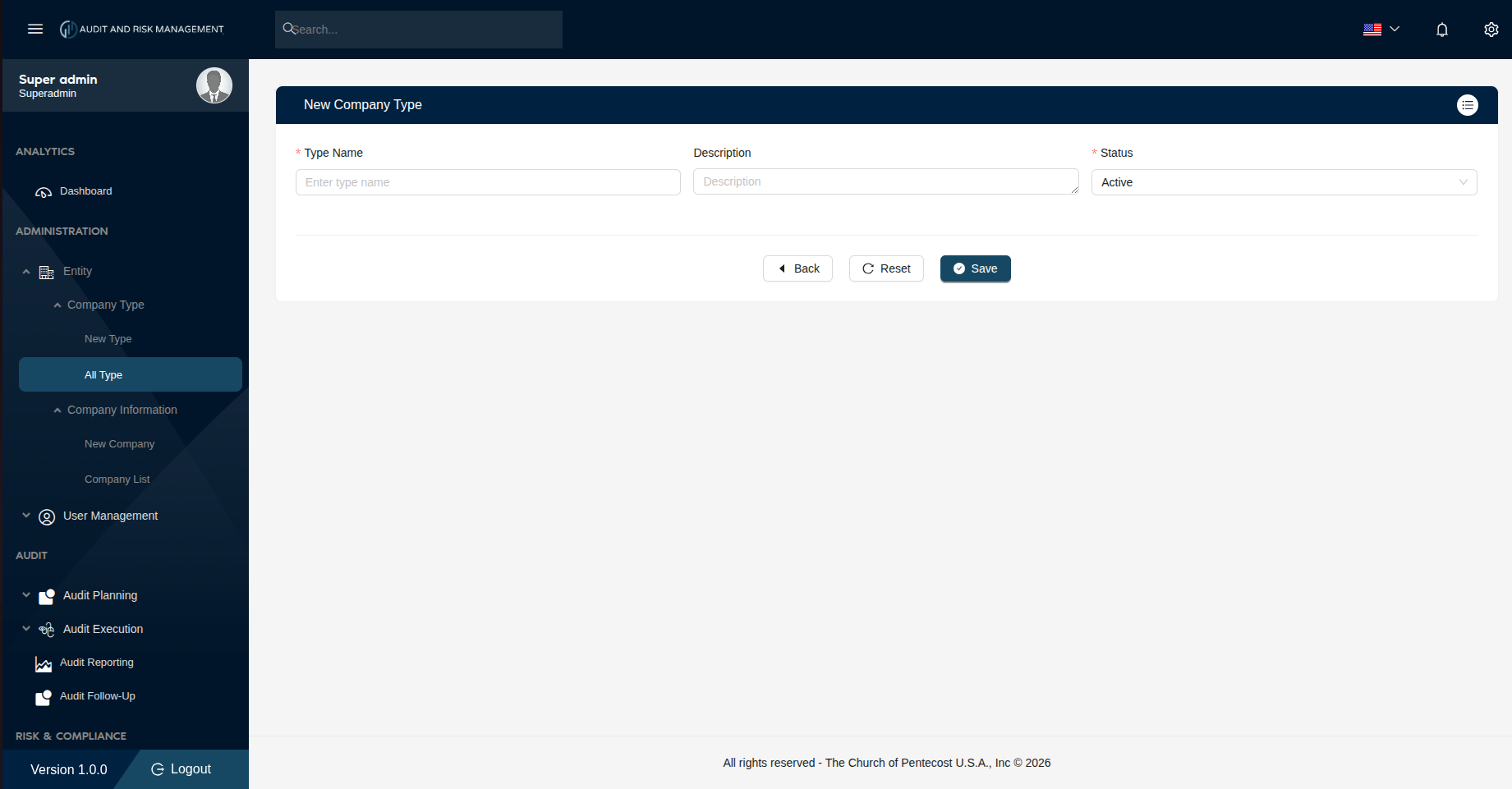
Form Fields
| Field | Type | Required | Description |
|---|---|---|---|
| Type Name | Text | ✅ | Enter a unique name for the company type (e.g. Construction, LLC, Non-Profit) |
| Description | Text | ❌ | A brief description of the company type |
| Status | Dropdown | ✅ | Set the status. Default is Active |
Step-by-Step: How to Create a New Company Type
- Go to Administration → Entity → Company Type → New Type
- Enter a Type Name (e.g. Corporation, LLC, Non-Profit)
- Optionally enter a Description
- Set Status to
Active(default) orInactive - Click Save to create the company type
!!! success "Expected Result" The new type appears in Administration → Entity → Company Type → All Type and becomes available in the Company Type dropdown when creating a new company.
!!! tip "Buttons" - Back — Returns to the previous page without saving - Reset — Clears all fields back to default - Save — Submits and creates the company type record