New User
Overview
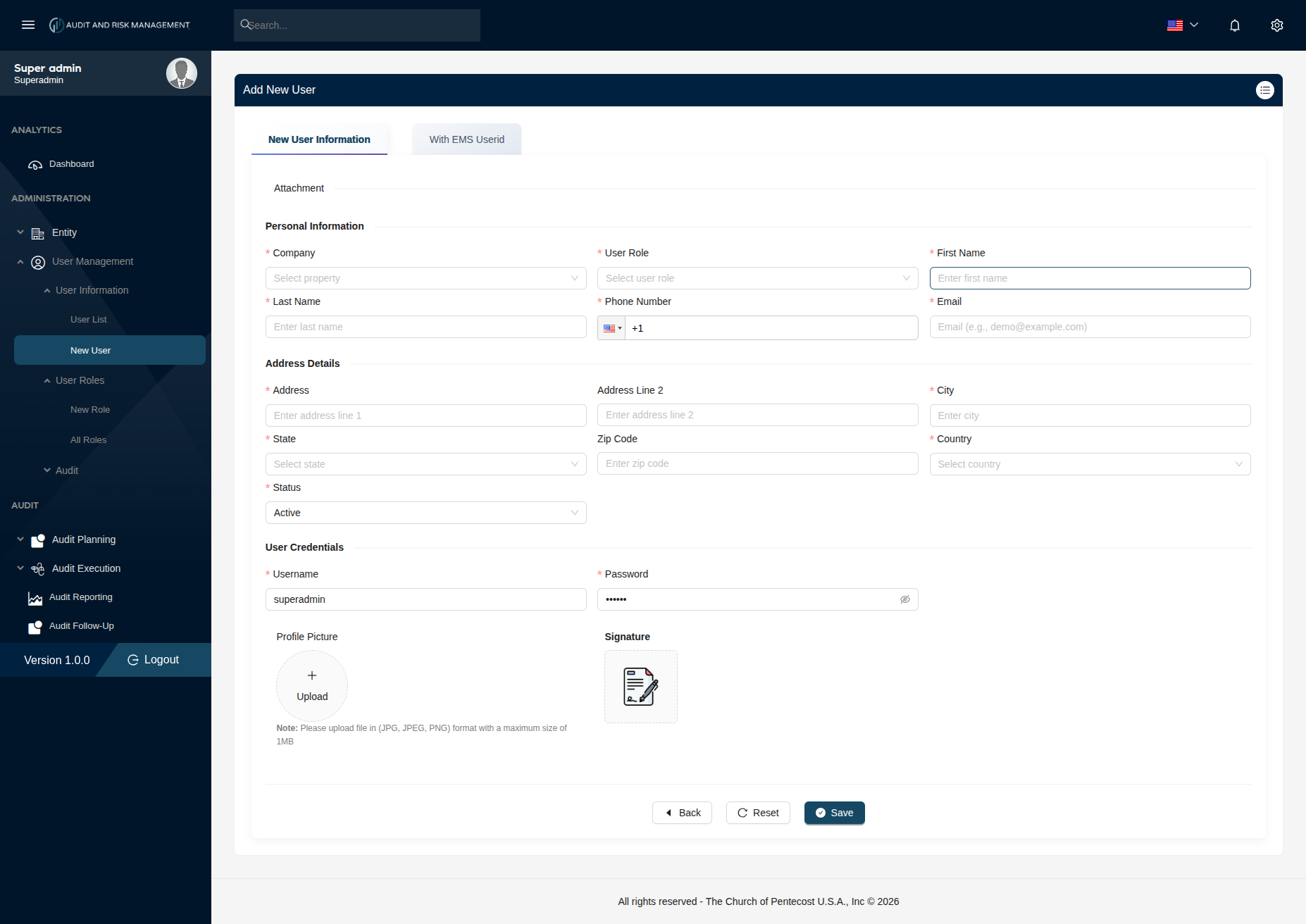
The New User form is used to create a new user account in the system. It offers two methods of user creation via tabs: New User Information (manual entry) and With EMS Userid (import via EMS ID).
Navigate to: Administration > User Management > User Information > New User
Tabs
| Tab | Description |
|---|---|
| New User Information | Manually fill in all user details to create a new account |
| With EMS Userid | Search by an existing EMS User ID to import and create a user from EMS |
Tab 1 — New User Information
Section 1 — Personal Information
| Field | Type | Required | Description |
|---|---|---|---|
| Company | Dropdown | ✅ | Select the company this user belongs to. Comes from Entity > Company Information |
| User Role | Dropdown | ✅ | Select the role assigned to this user. Comes from User Management > User Roles |
| First Name | Text | ✅ | Enter the user's first name |
| Last Name | Text | ✅ | Enter the user's last name |
| Phone Number | Phone | ✅ | Enter the user's phone number with country code |
| Text | ✅ | Enter the user's email address (e.g. demo@example.com) |
!!! warning "Company and User Role must be set up first" - The Company dropdown will be empty if no companies are added under Entity → Company Information. - The User Role dropdown will be empty if no roles are added under User Management → User Roles → New Role.
Set those up before creating a user.
Section 2 — Address Details
| Field | Type | Required | Description |
|---|---|---|---|
| Address | Text | ✅ | Primary street address |
| Address Line 2 | Text | ❌ | Suite, floor, building, etc. |
| City | Text | ✅ | Enter the city |
| State | Dropdown | ✅ | Select the state or province |
| Zip Code | Text | ❌ | Enter the postal/zip code |
| Country | Dropdown | ✅ | Select the country |
| Status | Dropdown | ✅ | Current status. Default is Active |
Section 3 — User Credentials
| Field | Type | Required | Description |
|---|---|---|---|
| Username | Text | ✅ | Enter a unique username for login (e.g. superadmin) |
| Password | Password | ✅ | Enter a secure password. Use the 👁️ icon to toggle visibility |
| Profile Picture | File | ❌ | Upload a profile photo in JPG, JPEG, or PNG format. Max size: 1MB |
| Signature | File/Draw | ❌ | Upload or draw the user's signature |
!!! warning "Profile Picture Format" Only JPG, JPEG, and PNG formats are accepted for the profile picture. The file size must not exceed 1MB.
Step-by-Step: How to Create a New User
- Go to Administration → User Management → User Information → New User
- Stay on the New User Information tab
- Under Personal Information, select the Company and User Role
- Enter First Name, Last Name, Phone Number, and Email
- Under Address Details, fill in Address, City, State, and Country
- Set Status to
Active(default) or appropriate value - Under User Credentials, enter a Username and Password
- Optionally upload a Profile Picture and add a Signature
- Click Save to create the user
!!! success "Expected Result" The new user appears in Administration → User Management → User Information → User List with the assigned role and Active status.
!!! tip "Buttons" - Back — Returns to the previous page without saving - Reset — Clears all fields back to default - Save — Submits and creates the user account