Audit Reporting
Overview
The Audit Reporting page displays all approved audit executions, providing a final view of the audit results including the Yes/No result ratio and options to view details or generate a report. An audit appears here after the execution is Approved from the Completed List.
Navigate to: Audit > Audit Reporting
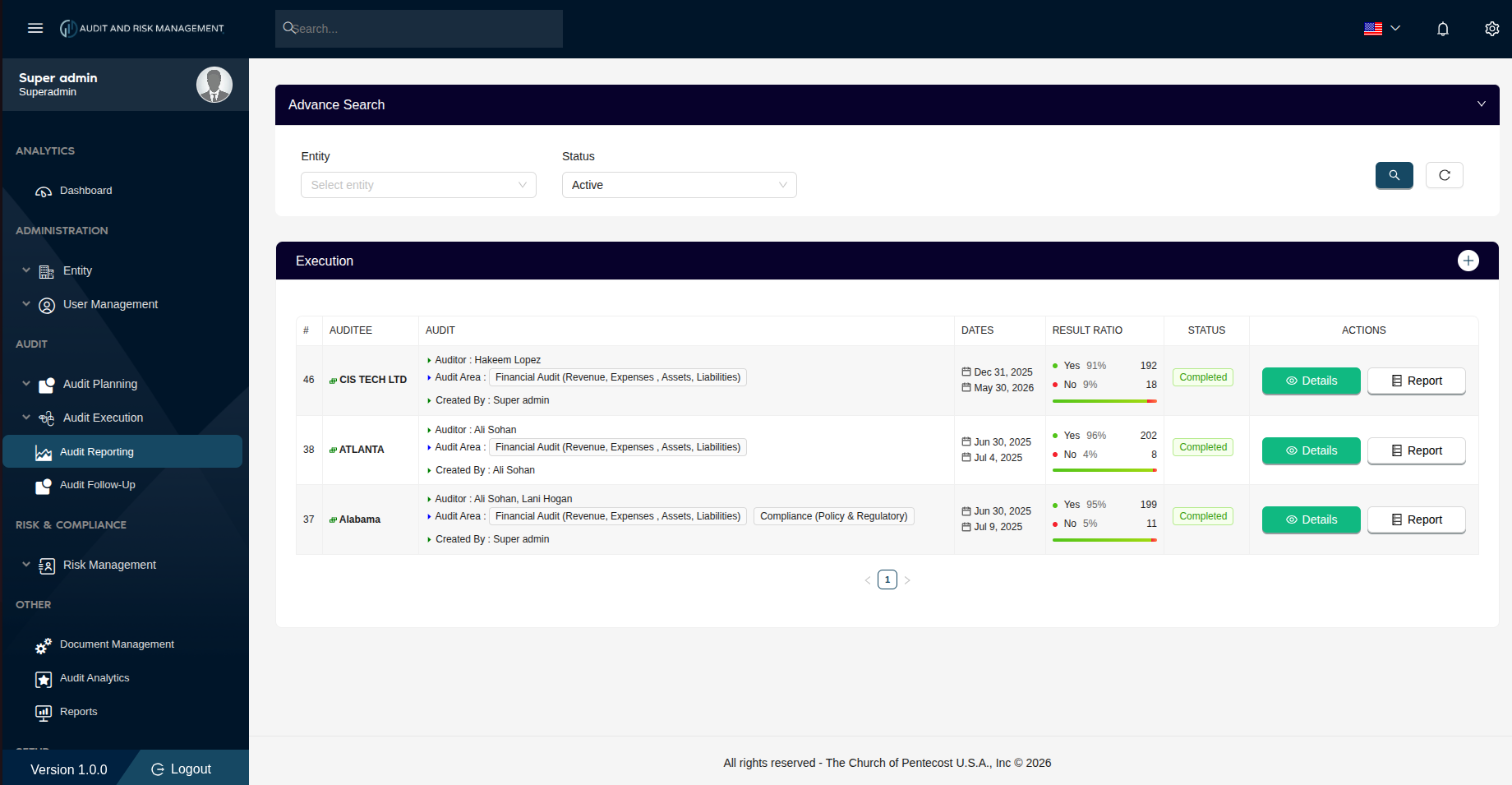
Advanced Search
| Filter Field | Type | Description |
|---|---|---|
| Entity | Dropdown | Filter by the company/entity being audited |
| Status | Dropdown | Filter by status. Default is Active |
!!! tip "Search & Reset" - Click the 🔍 Search button (teal) to apply the filters - Click the ↺ Reset button to clear all filters and reload the full list
Execution Table
| Column | Description |
|---|---|
| # | Notification ID |
| Auditee | The company/entity that was audited |
| Audit | Assigned auditor(s), audit area(s), and the user who created the notification |
| Dates | The audit start and end dates |
| Result Ratio | Visual breakdown of Yes % (green) vs No % (red) answers with counts and a progress bar |
| Status | Always Completed for records in this list |
| Actions | Details — view full questionnaire / Report — generate a printable audit report |
Result Ratio
The Result Ratio column gives a quick summary of audit outcomes:
| Indicator | Color | Description |
|---|---|---|
| Yes | 🟢 Green | Percentage and count of Yes answers |
| No | 🔴 Red | Percentage and count of No answers |
A colored progress bar shows the Yes/No split visually across the row.
Actions
🔍 Details
Click Details to open the full audit questionnaire with all submitted answers, ratings, procedures, attachments, and findings for that audit.
📋 Report
Click Report to generate a printable or downloadable audit report summarizing the full execution results for the selected entity.
Step-by-Step: How to View and Report an Audit
- Go to Audit → Audit Reporting
- Locate the audit by Auditee or # ID
- Review the Result Ratio — note the percentage of Yes vs No answers
- Click Details to review the full questionnaire responses
- Click Report to generate the audit report for that entity
!!! success "Expected Result" The Details view shows all answered questions with ratings, findings, and attachments. The Report generates a formatted audit report ready for distribution.
!!! info "No answers and Follow-Up" Questions answered No in the execution are tracked separately in Audit Follow-Up. Use Audit Reporting for the overall result summary and Audit Follow-Up for resolution tracking.